Your studio runs on Cadence SM. Here's your part.
If your teacher's studio uses Cadence SM, you get the Practice Room — the part with the tuner, the timer, the streaks, and the rewards store. Parents, your part has fewer confetti moments but books makeup lessons at 10pm.
Practice that counts itself
Sign in on the studio tablet or the one at home, run today's plan, and the minutes, the streak and the XP take care of themselves. Four tabs float at the bottom — Today, Practice, Music, Me — and the tuner and the metronome are one tap from Today. It runs in any phone's browser, and your studio can give you a link or a QR code that puts it on your home screen like an app.
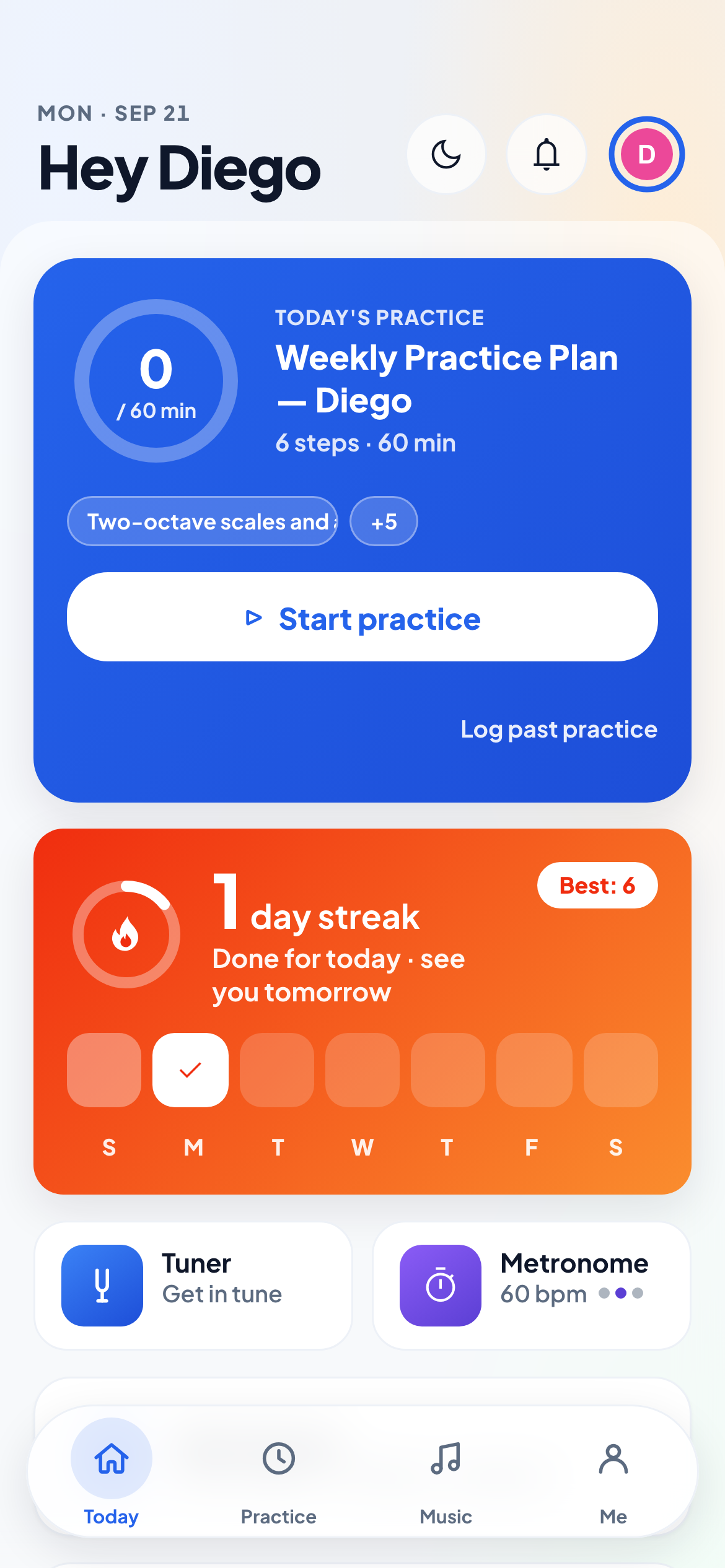
Today Today's plan and how far into your goal you are, your streak week, the tuner and metronome tiles, and what's next on the calendar.
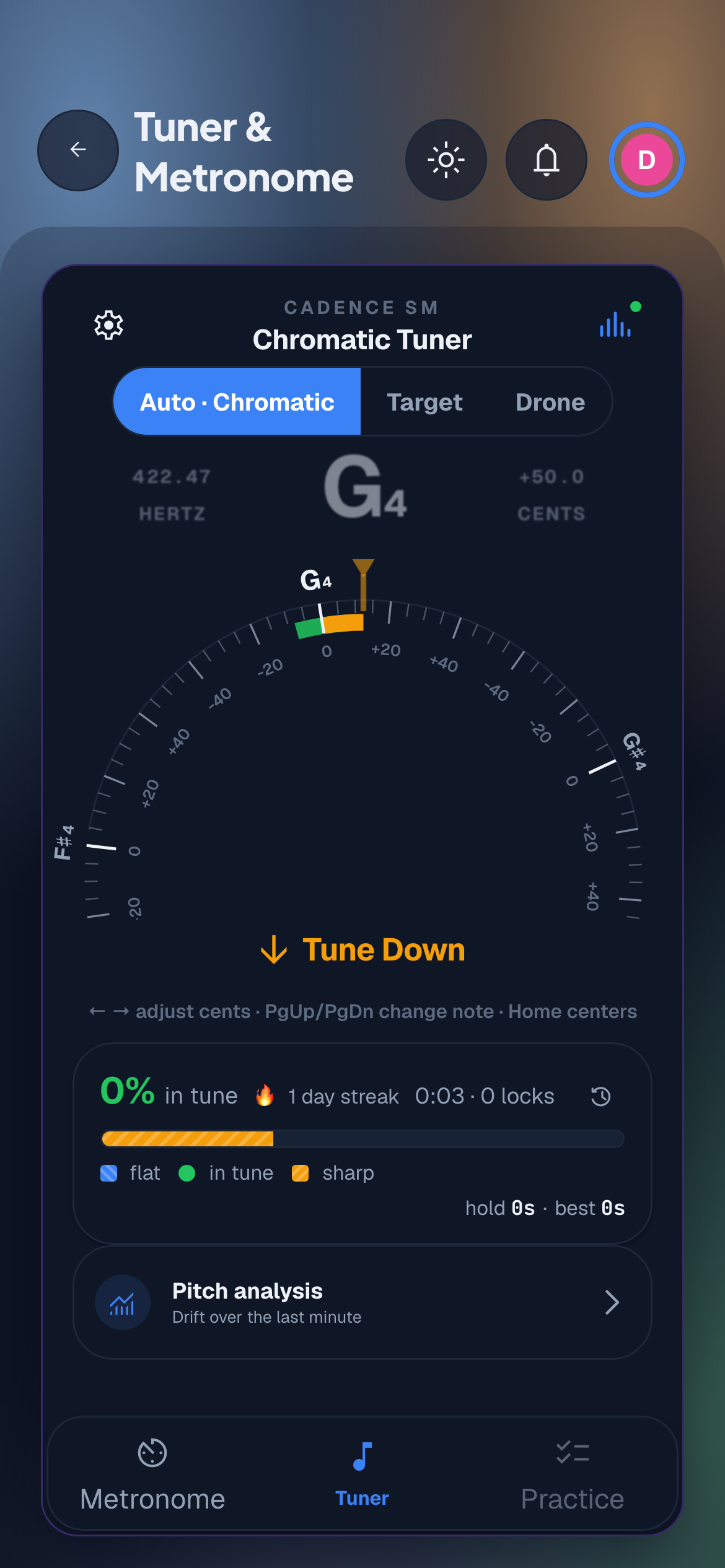
The tuner It listens and tells you which way to go. Chase a single note, or hold a drone under your scales — and it knows if your instrument transposes.
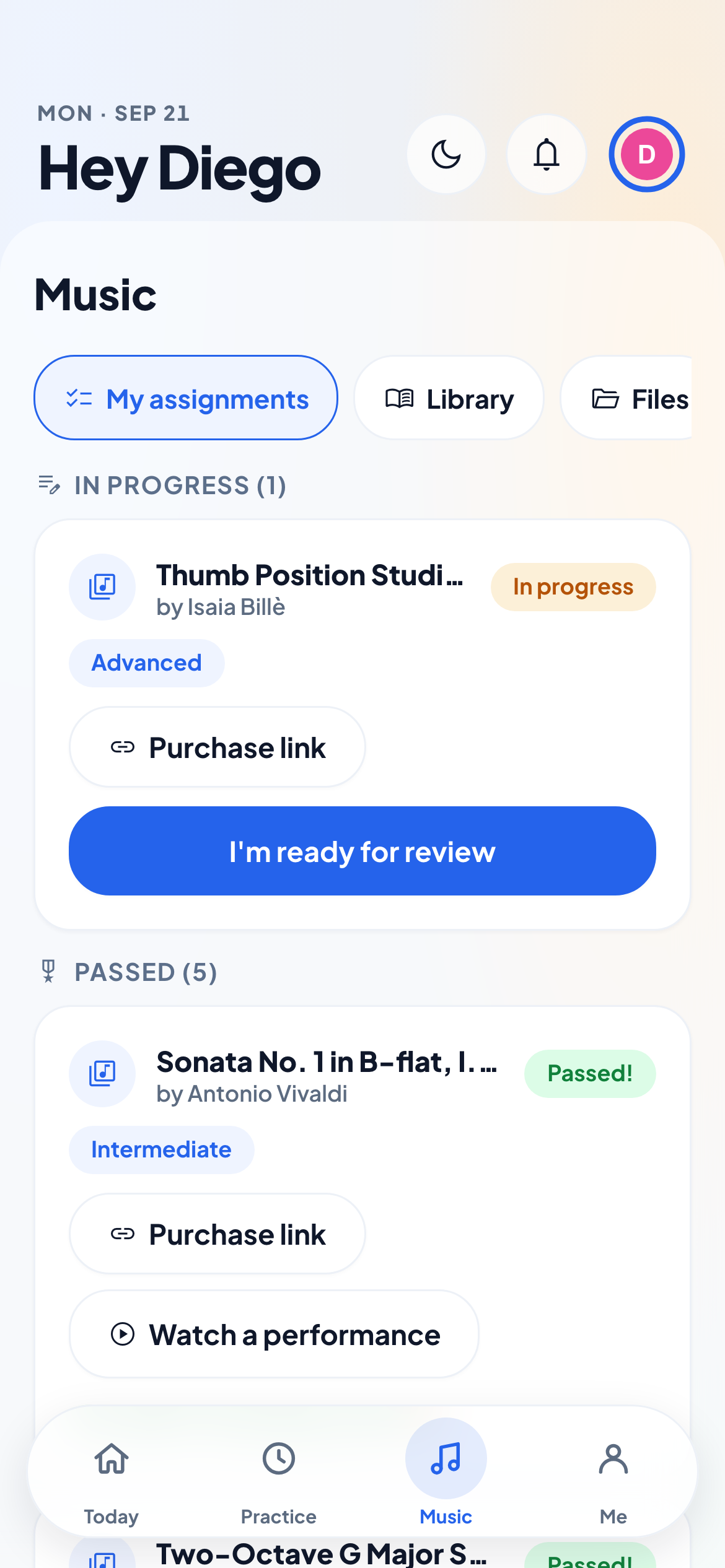
Music Everything you're working on and everything you've passed, with the sheet music — and somebody good playing it, so you know where you're headed.
A PIN, not a password
Tap your name, type your PIN, you’re in. No email address, no "forgot password" — the login was designed for a nine-year-old with a cello. Your studio can also give you a link or a QR code that opens it straight from your home screen, and it keeps you signed in for a month.
The practice timer
Your teacher’s plan, item by item — scales, that tricky passage at measure 32, the fun piece last. Start the timer, check things off, and your minutes log themselves. And the rhythm trainer can cut the click out mid-bar, just to see whether you’re still with it.
Streaks & XP
Every session earns XP. Practice most days and your streak grows — the sunset card on Today shows the week, with today outlined until you’ve done it. If you’re sick, your teacher can freeze it so you don’t lose it. That’s between you and them.
Badges & challenges
Studio-wide challenges, badges for real milestones, and a recognition wall where your teacher can brag about you publicly. Leaderboards, if your studio turns them on.
The rewards store
XP is currency. Your studio stocks the store — stickers, pick-your-piece passes, whatever your teacher dreams up — and you spend what you earned.
Recordings
Record a passage and send it straight from the portal. Your teacher hears it before the lesson instead of guessing what happened all week.
The boring superpowers
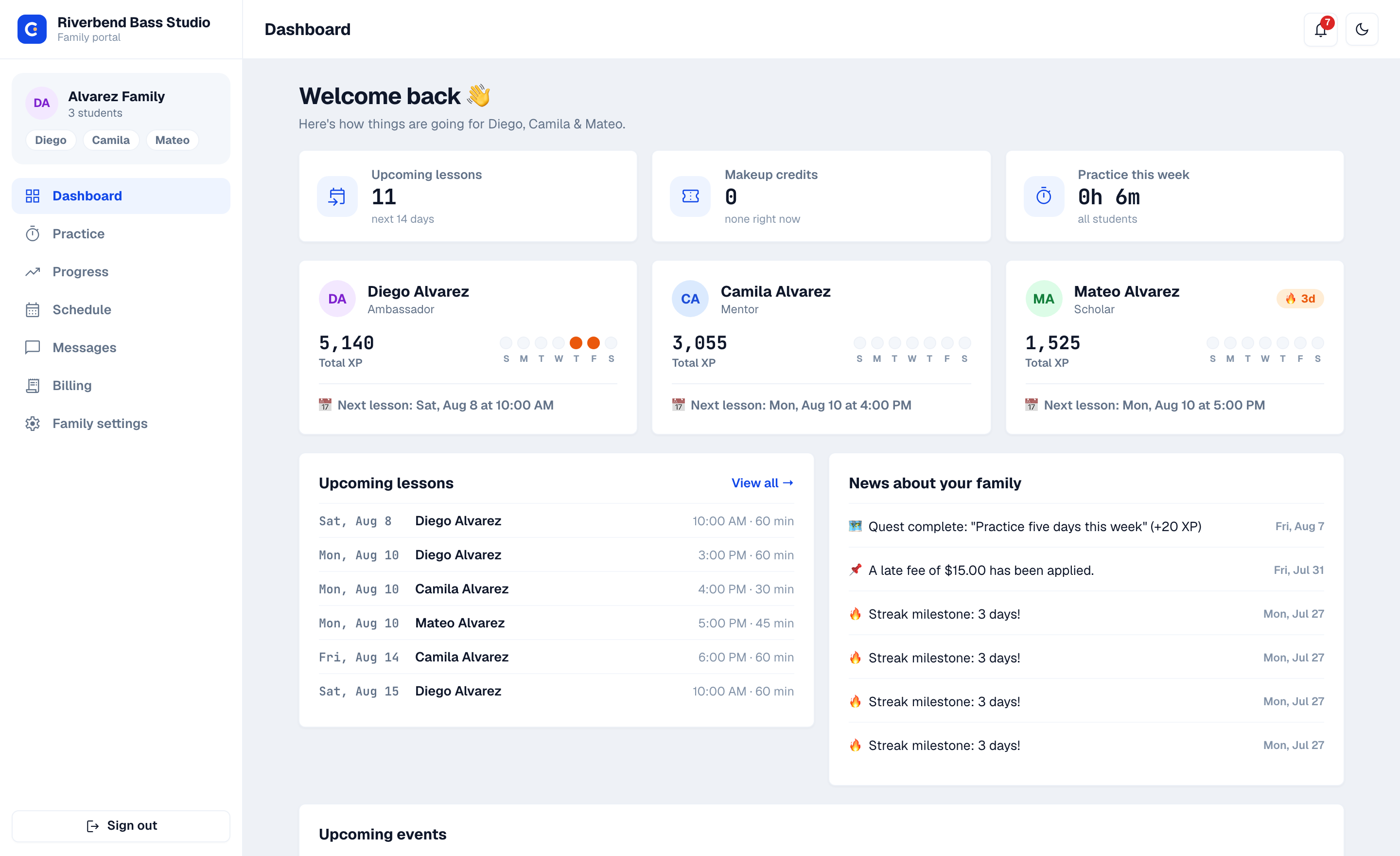
One login shows every child, on five tabs — Home, Schedule, Progress, Messages, Billing. Practice history, plan adherence, reflections and progress live in the same portal — so "how's it going?" has an answer that isn't a shrug. Both parents on the account get the notices, so neither of you is relaying them.
How you'll get an account
You don't sign up for Cadence SM — your studio brings you in, which is why there's no "create account" button on this page.
Studio not on Cadence SM yet?
The Practice Room comes with the studio — so the only way in is through yours. Send your teacher this page; they'll find everything they need on it. And if you are the teacher, you know what to do.